Over the last year or so, I’ve cobbled together a couple Illustrator scripts that export multiple artboards in an Illustrator document as PNG files, and export multiple layers as PNG files. (See my previous blog posts here and here.) I’d been meaning to merge them into one script, but had never quite gotten around to it until Khoi tweeted that he was looking for a script that did just that, but to PDF format.
So, a couple train rides later, I’ve finally combined the two scripts into a single one with a couple more added features: you can choose to export as PDFs in addition to PNGs, and you can also export the product of artboards and layers.
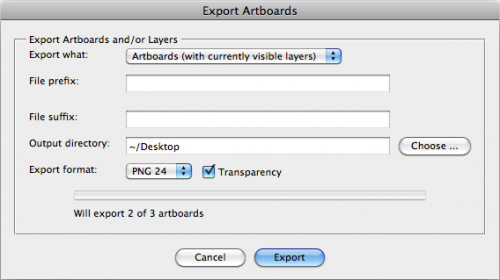
To use the script, download MultiExporter.jsx and put in your Illustrator scripts folder (usually in Applications/Adobe Illustrator/Presets/Scripts/). Restart Illustrator, and run the script by going to “File > Scripts > MultiExporter”.
A few notes:
- You can choose whether you want to export all the artboards in the document with the currently visible layers showing, or if you want to export files for each of the layers in a document on the currently active artboard, or if you want to export a combination of all the artboards multiplied by all the layers.
- Files are named based on their layer name. It only exports layers where their name has been changed from the default “Layer 1″, “Layer 2″ or “Artboard 1”, “Artboard 2”, etc.
- If you put a minus sign (-) in front of a layer name or artboard name, it will skip that layer or artboard. (Useful for when you no longer decide you like a particular mockup, but don’t want to delete it from the master Illustrator document.)
- For layers only: If you put a plus sign (+) in front of a layer name, that layer will always be visible. Useful for if you want to have a layer that always appears in the background of each exported image.
- It stores its settings in a nonvisible, nonprinting layer named “nyt_exporter_info”
- It has an option for transparency, and lets you choose between PNG8, PNG24 and PDF.
You can try it out on the sample file artboard-layer-test.ai.

The sample file contains artwork for buttons on three artboards — “Red”, “Blue” and “-Green” — and has seven layers.
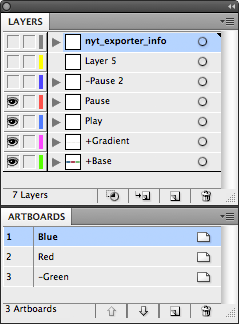
- If you run the script and choose “Export Artboards (with currently visible layers)” it will generate two files: Red.png and Blue.png that include whatever layers are currently showing at the time you run the script. (It skips the “-Green” artboard because the artboard name begins with a minus sign.
- If you chose “Export Layers (on currently selected artboard)” it will generate two files: Play.png and Pause.png. The “+Button” and “+Gradient” layers will appear in the background of both exported files, and it will skip the “-Pause 2″ and “Layer 5″ layers.
- And if you choose the “Artboard + Layers”, it will do a combination of the two other options and generate four files: Red-Play.png, Red-Pause.png, Blue-Play.png and Blue-Pause.png.
Try it out, and leave a note in the comments if you have any problems or suggestions.
Thank you! Very cool, saves a ton of time.
Many thanks for publishing this; combined with HicksDesign’s icon template [1] and a few more artboards for the splash screens I’ve gone from no workflow to a rather slick workflow in the space of 10 minutes. I also wasn’t aware of Illustrator’s scripting capabilities before now.
[1] http://hicksdesign.co.uk/journal/updated-ios-application-icon-ai-template
It is very useful.
But Could I put the layer name on head and the artboard name back?
Thank you so much! You just saved me about 6 hours!
Pingback: Free iOS 7 App Wireframing Kit With AI, SVG, PDF and PNG Formats Included
Thank you so much for this, it saved me SO MUCH time.
This is an amazing script! Thank you very much for sharing it. It’s AI CC compatible which makes it even better. Cheers mate!
Great script and works wonderfully! Is there anyway to adapt the script so that you can choose all the export formats at the same time? We often have to take many Illustrator files and convert them to the different formats for downloading for our members (logos, printed materials, etc). Been looking for an Illustrator script that could create multiple outputs, and this is the closest I’ve found so far. Any ideas?
Many many thanks. So many comments, forgive me if someone’s already asked—could the script have a button window where you could click on the various formats (or just one that said ‘all’) for when you need to get all of those different ones?
For next time…
Hi there,
I’d love to get this working but I’m getting the error: “Could not write the file. The file was not found.”
Any ideas?
Would absolutely love to use this… but it doesn’t seem to be working. After installing it (dropping .jsx file into the Illustrator/Presets/Scripts folder and loading it via the scripts menu in illustrator) I get the main window, and after selecting my settings + hitting export the window disappears, nothing happens, and I all I get is a layer called ‘nyt_exporter_info’ (hidden by default) with the following text:
PDF
~/Desktop
100
true
PDF
artboards
I’m running Illustrator CS6 on OS X Mavericks (10.9)
Would appreciate some help as I’d love to use this!!
Thanks
This is awesome, thank you! Would be even awesomer if it supported SVG.
I was able to export when I choose “Layers”, but I can’t export Artboards or Artboards + Layers. When I click the “Export” button, the dialog box closes, but nothing happens. The files are not saved… Any thoughts?
Thanks!
You can disregard my most recent comment, I found the resolution from one of the posts in the comments.
Note for Mavericks, maybe CC users. You have to change the file extension back to .jsx. Right now, download appends .txt to the end. Change it in the get info dialog. Also, you need to use terminal and chmod it to 755 to make illustrator recognize it.
Great script, thank you very much!
This is great…thanks!
Is there any way to install this script so it appears under the Scripts menu item in Illustrator CC? I can only get it to run by selecting Other Script, and loading it manually every time.
Thanks!
Like may here, I’m wondering what the pdf export settings are. Is it an illustrator preset? Is it the same as the source document? It’s especially frustrating because once the PDFs are generated, there’s no way (at least that I can find) to check colorspace or other PDF preferences (which means another batch action to make sure all the layer pdfs are the right spec). But a great script!
Comparing the quality of “Save As” to multipleexporter – I would say that MultipleExporter is rather blurry. Can you tell me why is that?
Many thanks for your work. This great functionality is the anwer to the workflow between graphic designers and web/app developers. I think it’s a must for Illustrator (hope they’ll add your script directly in next versions). Congratulations!
Thanks for the script!
It would be nice if you could add the possibility to export higher dpi png files like 100dpi, 150dpi, 200dpi, 266dpi and 300dpi (or allow users to enter a custom dpi value).
Thanks for this. Would be great to have SVG export supported.
Pingback: Tip // Export those Illustrator layers to png! | GT Comms Design
Great script!
Do you have any tips on how I can adjust the script to export the PNG files at 300dpi for print? I am creating hundreds of stickers for printout.
Thanks!
Thanks so much for the script. That’s exactly what I want and more 🙂
Hi. thanks for the scripts.
I’m using Illustrator CS6. I have made 250 icons in a single artboard. Now i want to export all the layers to eps files but eps8, or eps10 as graphicsriver.com accepts eps8 or 10. How would i do that?
Can I export multiple eps files to a different version. Like if i am using CS6, can i export all the layers to eps8 or eps10 files?
Is there any way that I can set PDF export settings?
Like adding bleed and setting output to PDF/x-1a: 2001…
Love the script – has saved me hours !!! Thank you!
another question- what are the default PDF settings in the script?
Thanks
I wish I knew about this script sooner! Thank you so much!
You are a lifesaver! Many thanks for this great script.
just came across this script, exactly what i needed, to set up an icons collection. now exporting changes has become really easy. thanks so much!
Fantastic!!! Thanks SO much for posting this!!!!!!! Saved me a TON of time…(used this on CC 2014 on a Mac)
Same question as Sherri, I didn’t see response.
I need to select specific PDF export settings that change from time to time.
Like bleed and crops etc.
Exporting 50 business card files front and back with full bleed.
How?
Thanks, great time saver.
If you want to use a specific PDF Presets… Here is what you need to do.
Open the Script with ExtendScript Toolkit and search for:
} else if ( this.format == ‘PDF’ ) {
options = new PDFSaveOptions();
options.compatibility = PDFCompatibility.ACROBAT5;
options.generateThumbnails = true;
options.preserveEditability = false;
Replace it with:
} else if ( this.format == ‘PDF’ ) {
options = new PDFSaveOptions();
options.pDFPreset = ‘NameOfPreset’;
Just edit the ‘NameOfPreset’ with the name of your save preset. in between the ‘
Is there a chance you’ll ever add GIF export options to this script? It would seem no one has done that yet.
Hi, That’s brilliant, thanks.
You may be abble implement the option of artboard size for the export file?
I am currently working on a background for a game which would be projected, the artboards are 50% smaller than reality cause they cannot fit into illustrator drawing area. I wish to export them all at their real size. Any suggestions ? thanks so much.
Excellent script! It worked perfectly, and will save me a bunch of time. I really appreciate you sharing this.
Great. It is working. Thank you very much.
this script looks great – if only i could get it to work(my bad)
when exporting out pdf individual assets the surrounding space of the artboard is included in the file as well – could I please have some direction as to how to correct this?
thanking you in advance
Script also ignores Artboard if it has default name: Artboard 1, Arboard 34…..
Other than that, it’s a great script, thanks!!!
Great scripts! Thank you so much!!! Any chance SVG export could be added?
Heya, again me! 🙂
This script is one of the best ones I used!
Only one thing needs to be changed, “Cancel” and “Export” need to change position one with the other, since illustrator uses form [Confirm] [Cancel]
I ended up canceling my export a bunch of times because of this. Still, this script saved me years of work!
Does not seem to work on AI CC ?