Matthew Ericson

Visualizing the News at AIGA

I had a great time speaking today at the AIGA Pivot design conference about how we approach data visualization and information graphics at The Times.

I’ve posted the slides from my presentation as a PDF. Links to the interactives I mentioned are below.

Read the rest of this entry »

 1 comment »

When Maps Shouldn’t Be Maps

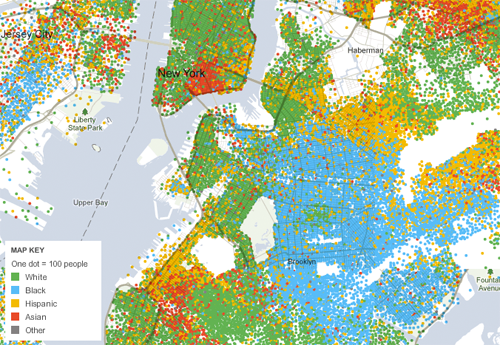
Often, when you get data that is organized by geography — say, for example, food stamp rates in every county, high school graduation rates in every state, election results in every House district, racial and ethnic distributions in each census tract — the impulse is since the data CAN be mapped, the best way to present the data MUST be a map. You plug the data into ArcView, join it up with a shapefile, export to Illustrator, clean up the styles and voilà! Instant graphic ready to be published.

And in many cases, that’s the right call.

Read the rest of this entry »

 9 comments »

Illustrator MultiExporter script: Now with JPG and EPS

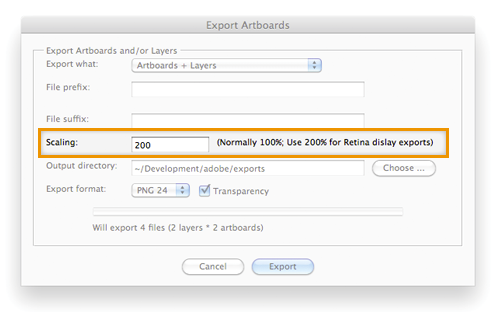
Just pushed out a little update to my Illustrator artboard and layer exporter script that adds JPG and EPS as export options. Read about how the script works and download it here: MultiExporter.jsx

 Add comment

Mapping the News

I spoke today at the New York City Arc Users Symposium about how The Times graphics department uses maps to explain the news and help readers better understand what’s happening in the world around them.

I’ve posted the slides from my presentation as a PDF. The interactives for each section of the presentation are below.
Read the rest of this entry »

 3 comments »

Export Illustrator Layers and/or Artboards as PNGs and PDFs

Over the last year or so, I’ve cobbled together a couple Illustrator scripts that export multiple artboards in an Illustrator document as PNG files, and export multiple layers as PNG files. (See my previous blog posts here and here.) I’d been meaning to merge them into one script, but had never quite gotten around to it until Khoi tweeted that he was looking for a script that did just that, but to PDF format.

So, a couple train rides later, I’ve finally combined the two scripts into a single one with a couple more added features: you can choose to export as PDFs in addition to PNGs, and you can also export the product of artboards and layers.

To use the script, download MultiExporter.jsx and put in your Illustrator scripts folder (usually in Applications/Adobe Illustrator/Presets/Scripts/). Restart Illustrator, and run the script by going to “File > Scripts > MultiExporter”.

A few notes:

  • You can choose whether you want to export all the artboards in the document with the currently visible layers showing, or if you want to export files for each of the layers in a document on the currently active artboard, or if you want to export a combination of all the artboards multiplied by all the layers.
  • Files are named based on their layer name. It only exports layers where their name has been changed from the default “Layer 1″, “Layer 2″ or “Artboard 1″, “Artboard 2″, etc.
  • If you put a minus sign (-) in front of a layer name or artboard name, it will skip that layer or artboard. (Useful for when you no longer decide you like a particular mockup, but don’t want to delete it from the master Illustrator document.)
  • For layers only: If you put a plus sign (+) in front of a layer name, that layer will always be visible. Useful for if you want to have a layer that always appears in the background of each exported image.
  • It stores its settings in a nonvisible, nonprinting layer named “nyt_exporter_info”
  • It has an option for transparency, and lets you choose between PNG8, PNG24 and PDF.

You can try it out on the sample file artboard-layer-test.ai.

The sample file contains artwork for buttons on three artboards — “Red”, “Blue” and “-Green” — and has seven layers.

  • If you run the script and choose “Export Artboards (with currently visible layers)” it will generate two files: Red.png and Blue.png that include whatever layers are currently showing at the time you run the script. (It skips the “-Green” artboard because the artboard name begins with a minus sign.
  • If you chose “Export Layers (on currently selected artboard)” it will generate two files: Play.png and Pause.png. The “+Button” and “+Gradient” layers will appear in the background of both exported files, and it will skip the “-Pause 2″ and “Layer 5″ layers.
  • And if you choose the “Artboard + Layers”, it will do a combination of the two other options and generate four files: Red-Play.png, Red-Pause.png, Blue-Play.png and Blue-Pause.png.

Try it out, and leave a note in the comments if you have any problems or suggestions.

 25 comments »

Caching HTTP Requests with Ruby

Making information graphics these days often requires scraping data from web sites, and Ruby is currently my goto language for most scraping tasks. The process of building a web scraper often involves a lot of trial and error, and I don’t necessarily want to pound the same site with HTTP requests again and again as I tweak and debug code.

So, I wrap HTTP requests in a tiny little class that saves the responses to the file system, so if you request the same URL again, it will load the cached data, eliminating the need for an HTTP request:

class HTTPCacher 
  def initialize( base_dir )
    @base_dir = base_dir
  end

  def get( url, key )
    
    cached_path = @base_dir + '/' + key
    if File.exists?( cached_path  )
      puts "Getting file #{key} from cache"
      return IO.read( cached_path )
    else
      puts "Getting file #{key} from URL #{url}"
      resp = Net::HTTP.get_response(URI.parse(url))
      data = resp.body  
      
      File.open( cached_path, 'w' ) do |f|
        f.puts data
      end
    
      return data
    end

  end
end

Usage is pretty simple. Create a new HTTPCacher object

getter = HTTPCacher.new( '/path/to/data/dir/here' )

and then make a get request, passing two parameters: 1. a URL, and 2. the key that you want to cache it under. Any further requests with that cache key will load the file straight from the filesystem.

data = getter.get( 'http://otter.topsy.com/search.json?q=ipad&window=auto', 'ipad.html' )

Note that making sure your keys are unique between URLs is entirely up to you. If you try to request two different URLs but pass the same key, it won’t be able to tell them apart and it will return the cached data on the second request.

 Add comment